

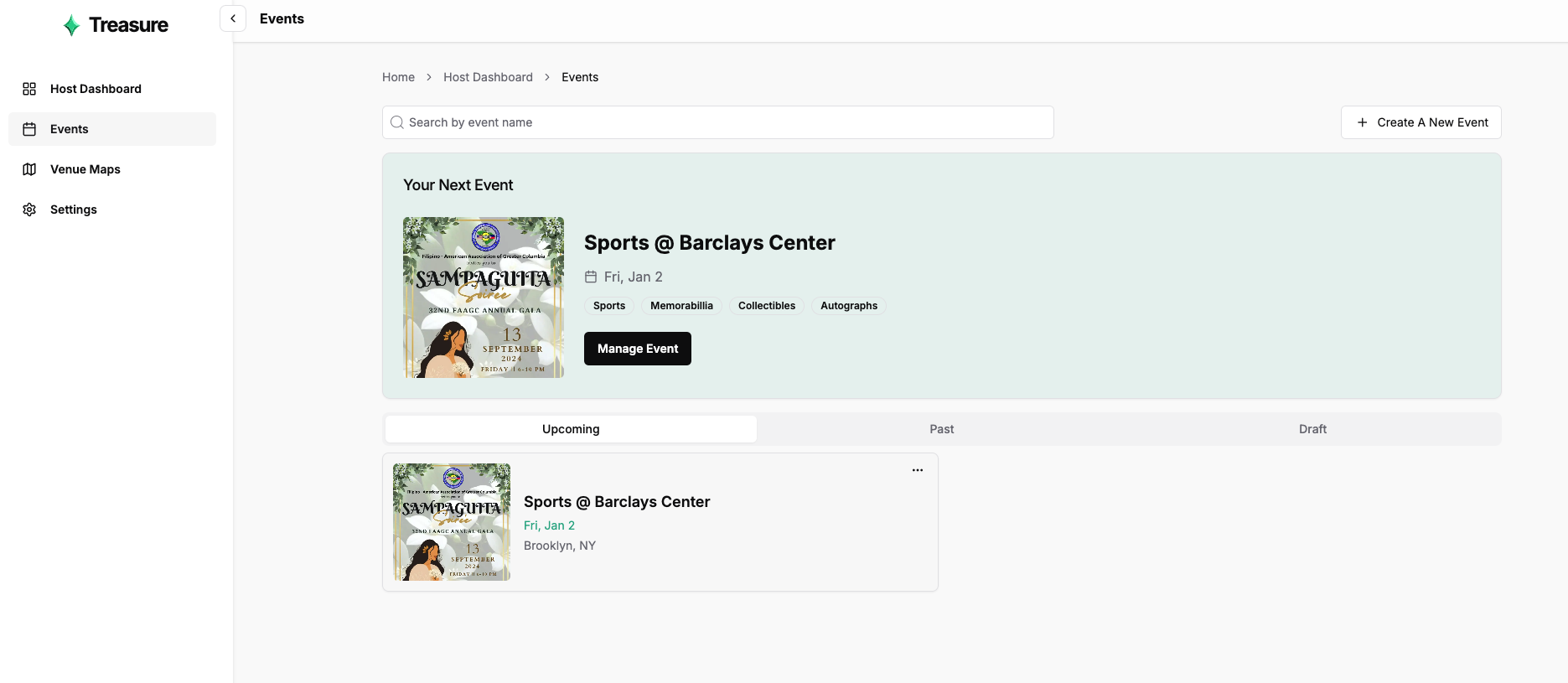
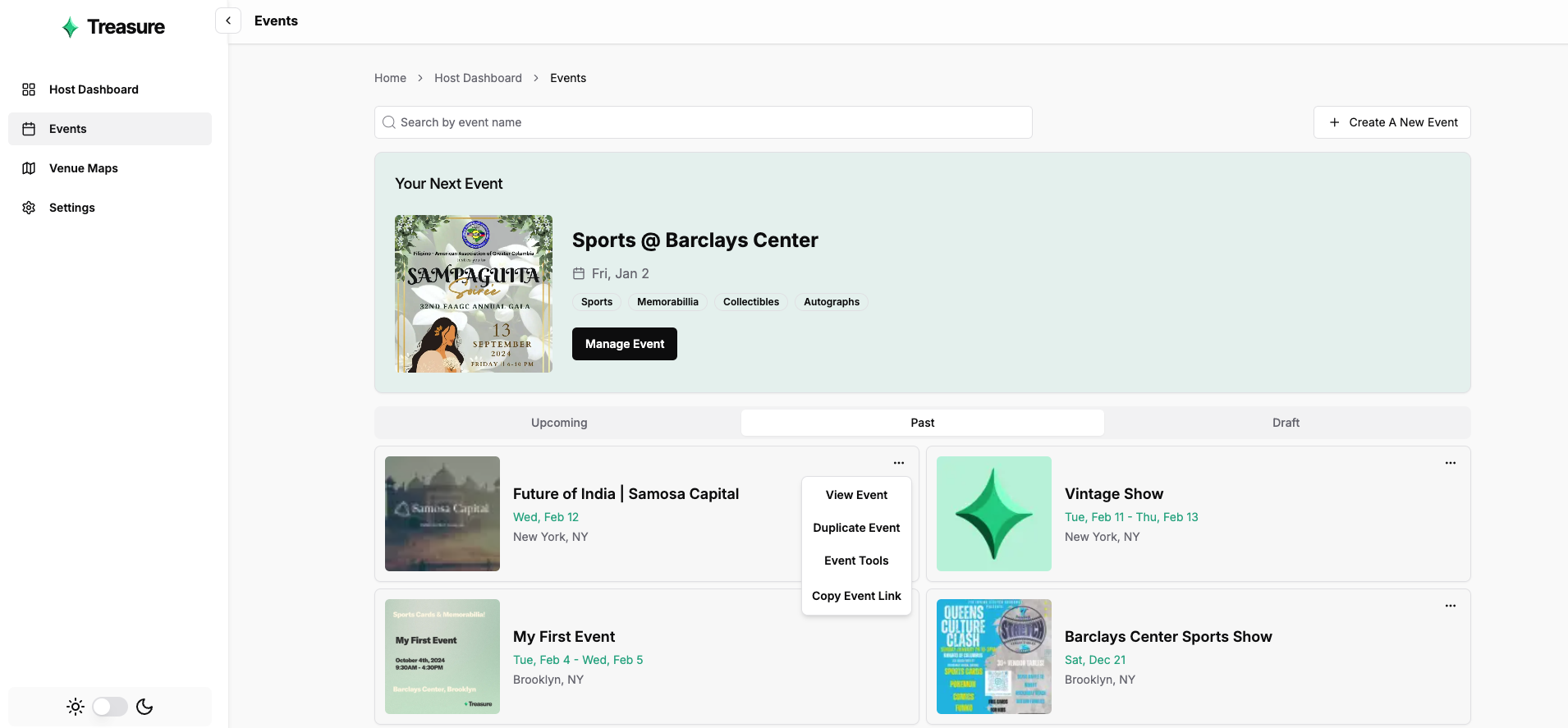
Event Dashboard
The above steps will take you to your event dashboard for one of your events. This is the hub that displays all your event’s performance metrics, actions you can take to promote your event, the ability to manage your team, and the venue map editor.
Sales
To view your event’s sales, you can click on the “Orders” button in the above dashboard. The sales page shows all the purchases (tickets and tables) that have been made as well as the payout associated with each order. If your customer used a promo code, it will also show up on this page. To learn more about how to create promo codes, you can check out the promo code guide.
Attendees
The attendees page shows all the unique ticket purchasers for your event. Clicking into any attendee will show you all the tickets they hold, the attendee’s contact info, and whether their tickets have been scanned.
Vendors
The vendors page provides an overview of the number of applications you’ve accepted/rejected and how much of each table tier you’ve sold. It also shows you a filterable table of all your vendor applications regardless of their status. To learn more about vendor management, you can see the full guide.