Follow these steps to create a promo code for an event
1

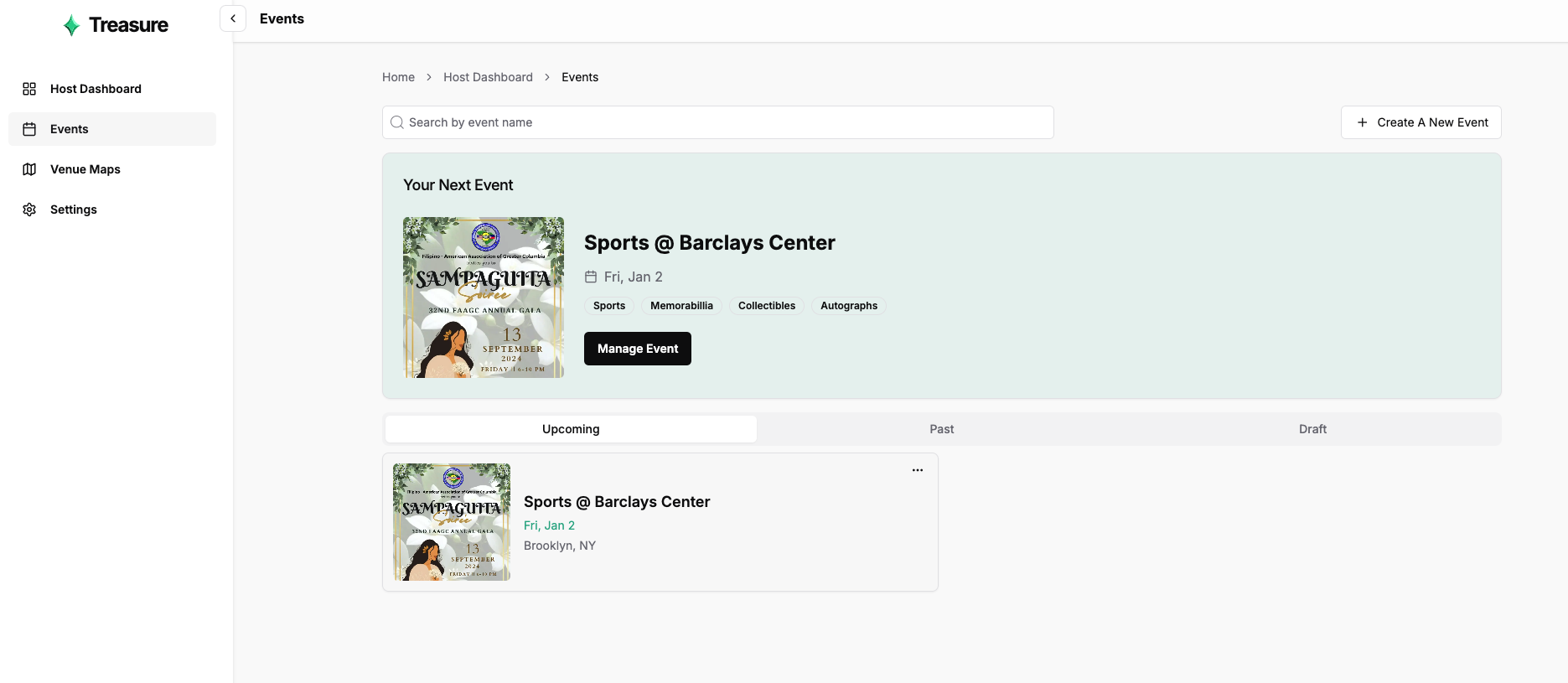
Select An Event

From your host dashboard’s Events page, select the event you want to add a promo code to
2

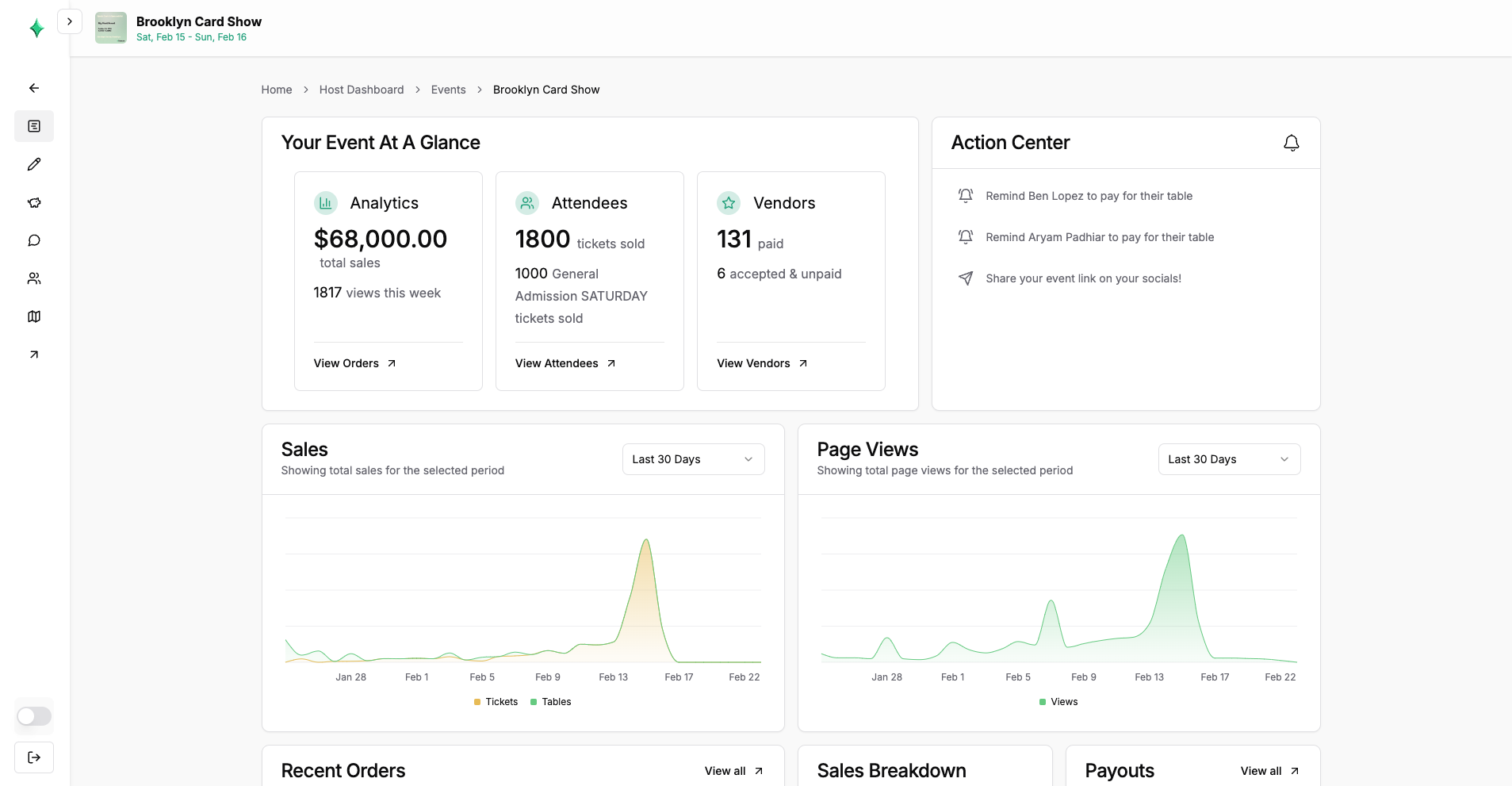
Click on View Orders

From the event’s dashboard, click “View Orders” to navigate to your event’s Sales page
3

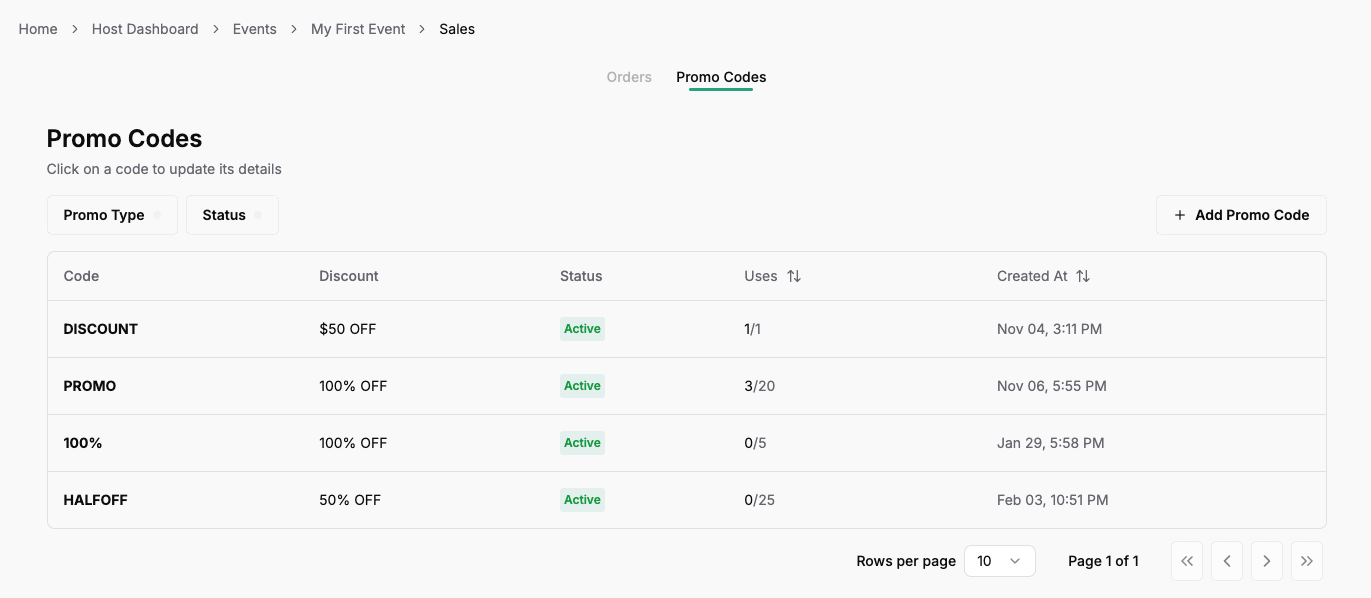
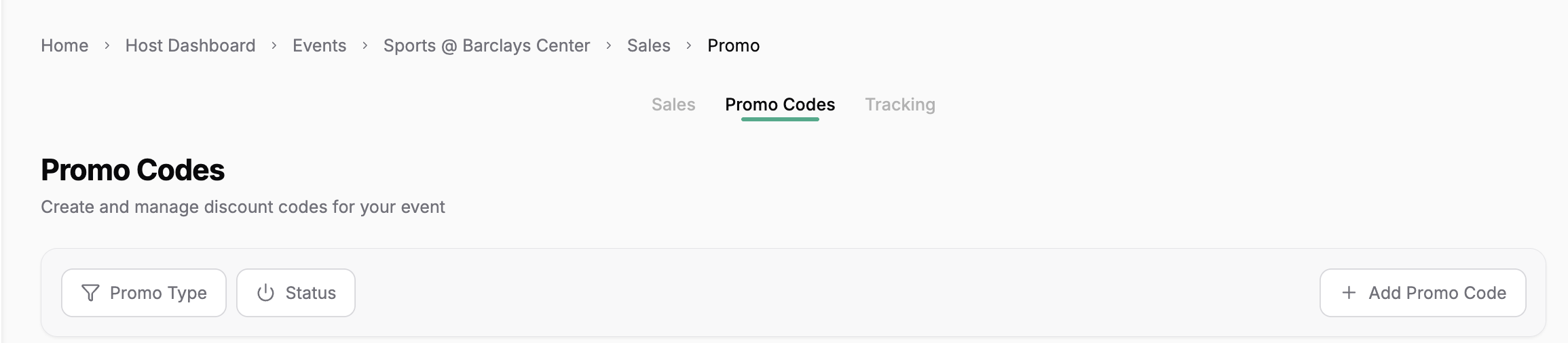
Switch to the "Promo Codes" tab

In the Sales page, select the “Promo Codes” to manage all your promo codes for that eventScreenshot 2025-11-15 at 2.30.50 AM.png
4

Click "Add Promo Code"

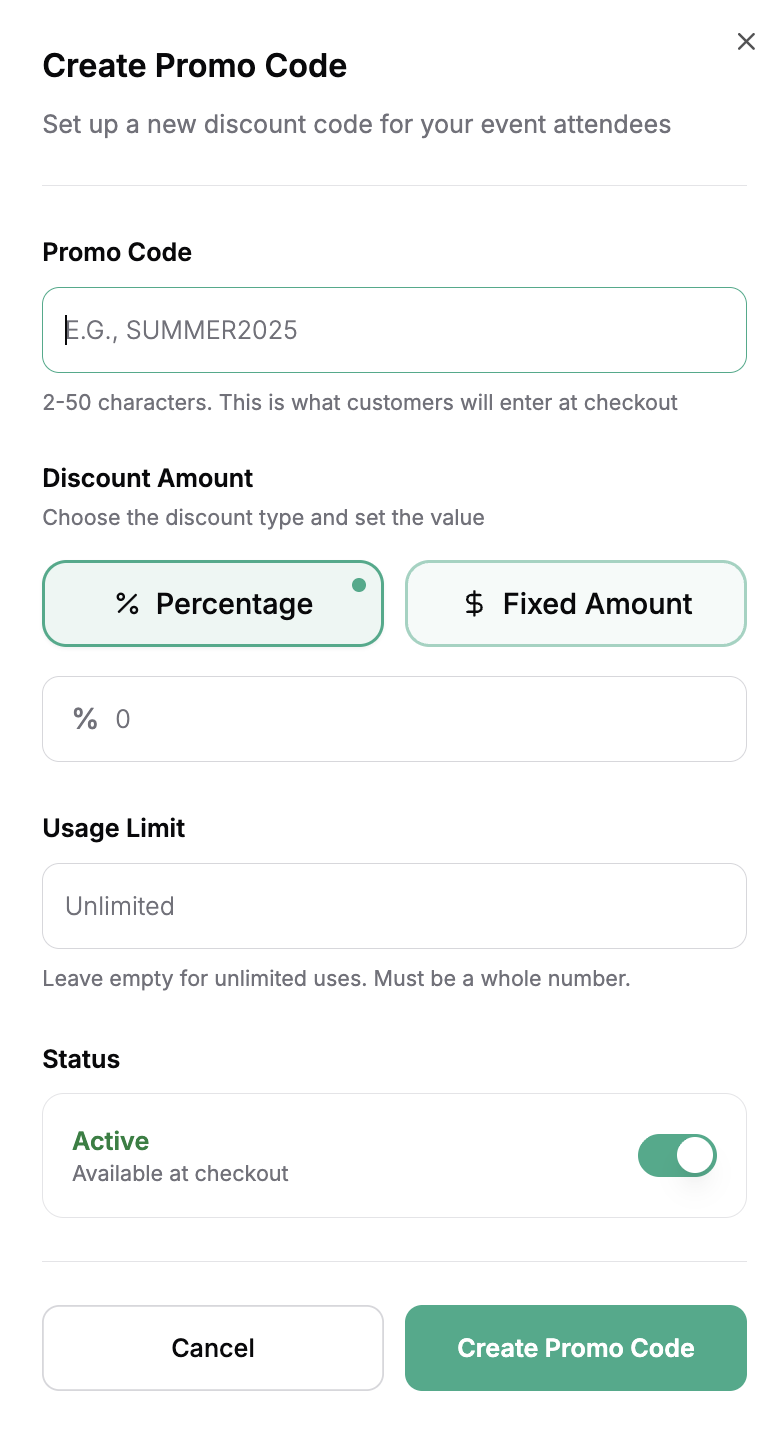
Click the “Add Promo Code” button to create a new code. Set your desired code, discount in percentage or dollars, and the usage limit associated with the code. Setting the code as “Active” and clicking the “Create Promo Code” button will make your code live immediatelyScreenshot 2025-11-15 at 2.29.23 AM.png
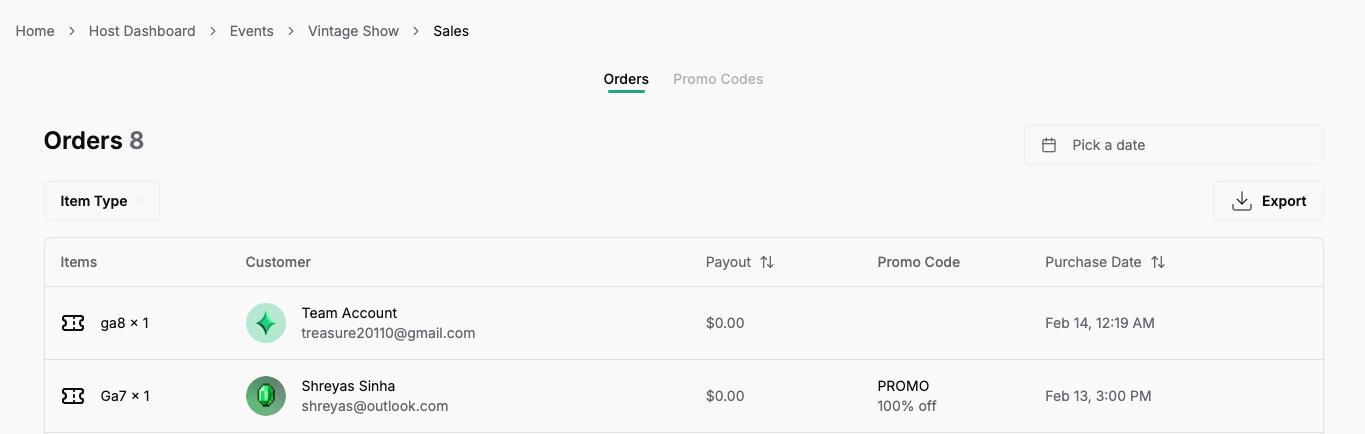
And with that, you’re done! When a promo code is used, it will show up in the “Promo Code” column for the order where the code was used.You can always revisit the Promo Codes page to make codes inactive or check their usage.