

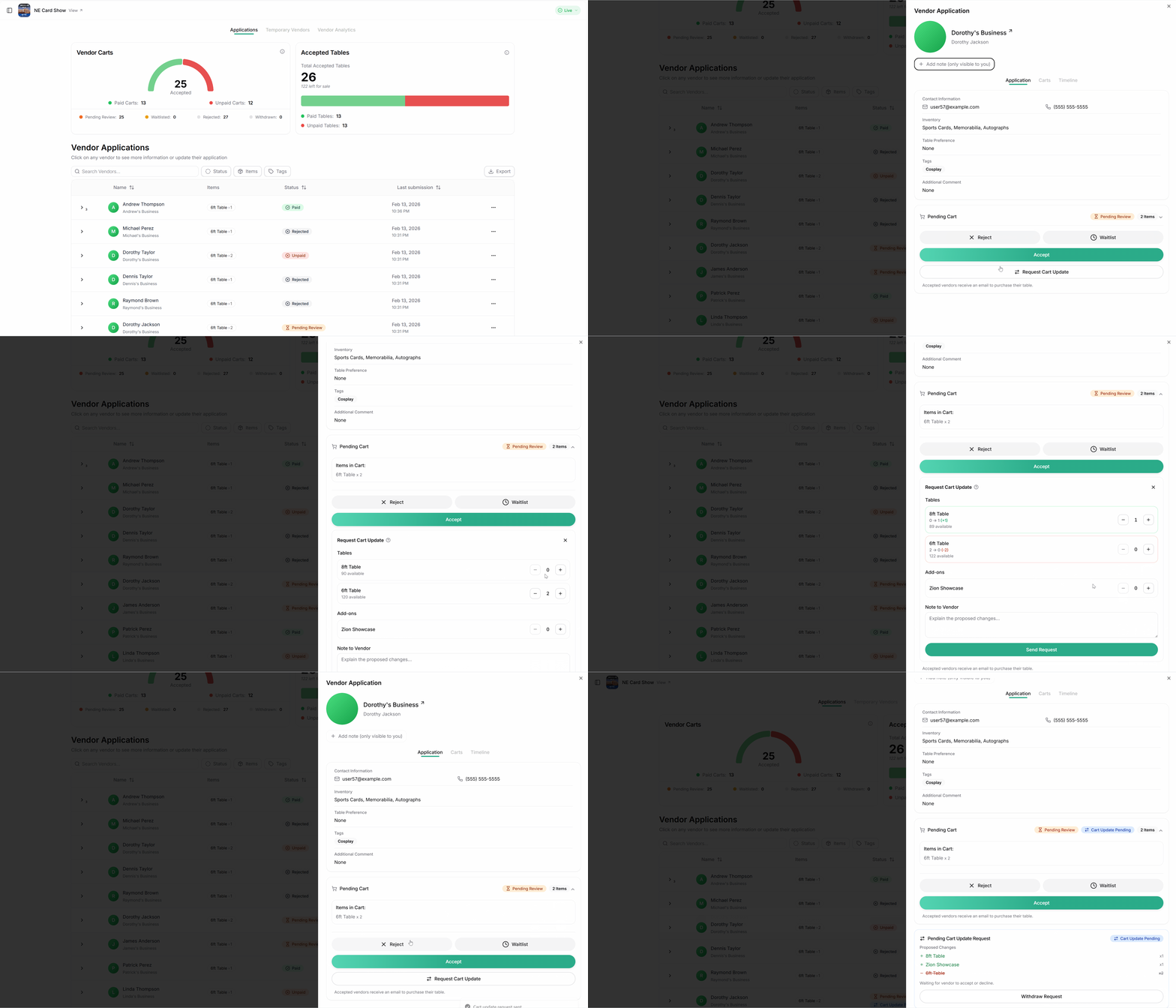
From your event dashboard, navigate to the vendors page and select the application you are requesting updates for. Then, select 'Request cart update' and adjust quantities accordingly. Note that once a request is submitted, vendors will immediately be able to checkout with the new cart you've requested.
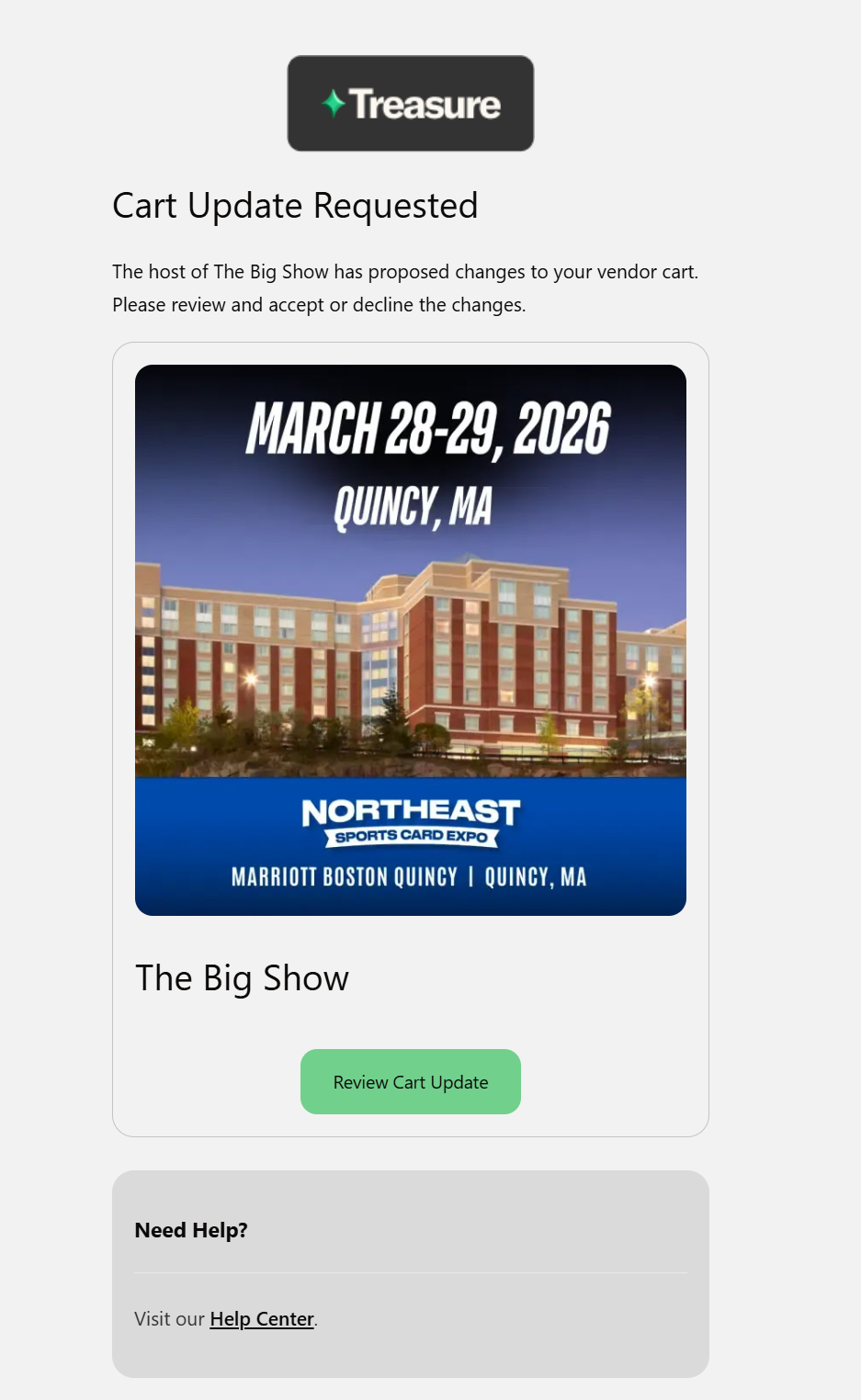
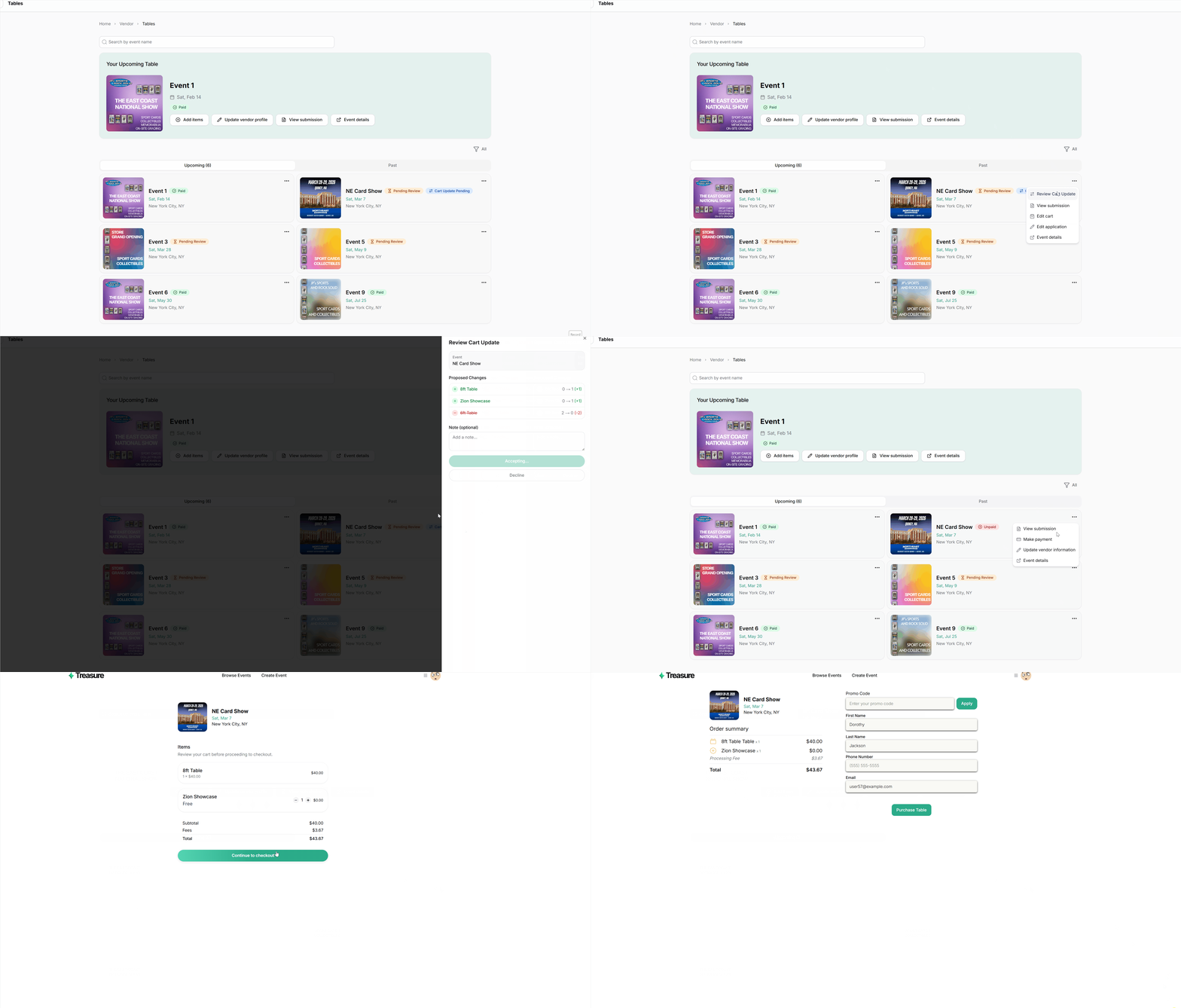
If a vendor is struggling to find the requested update, you can direct them to their vendor dashboard and suggest they double check whether they are accessing it with the same account they applied to the event with